YouTube Aspect Ratio Explained: Sizes, Fixes, and Tips
YouTube aspect ratio choices can cause black bars or cropped edges. Compare video and Shorts formats; turn landscape footage vertical without restarting.

Contents
A YouTube aspect ratio is the width-to-height shape of a video frame, such as 16:9 for standard landscape videos or 9:16 for vertical Shorts. Match the project shape to where viewers will watch, and choose whether to fit the whole image with bars or fill the screen by cropping; keep important details centered and check current resolution requirements before exporting. Planning formats from the start helps prevent awkward bars or cut-off content and makes it easier to create landscape, vertical, and square versions from one master video.
Ever bought a picture frame only to find your print doesn’t fit? Video has the same problem. An aspect ratio is the shape of your frame, written as width to height, like 16:9 for the widescreen format most people watch on a TV or computer.
YouTube works with several shapes, from wide videos to vertical Shorts, and picking the wrong one leaves you with black bars or chopped-off edges.
In this post, we’ll walk through each ratio, show you how to fix those awkward gaps, and help you export one project for several formats without starting over.
The Basics of YouTube Aspect Ratio
Before you export anything, know your video’s shape. Once you can read it, black bars and cropping start to make sense.
What aspect ratio actually means
Aspect ratio is the width-to-height proportion of your frame, written as width:height. A 16:9 frame is 16 units wide for every 9 units tall. When that shape matches the screen, the picture fills it with no black bars and no cropping.
When it doesn’t, the player fills the gap with black bars. Cropping is the other route, and it’s your call in the editor. Take a solo illustrator who films a 16:9 timelapse of a finished poster, then wants a 9:16 clip for Shorts.
A vertical crop keeps only a narrow strip down the middle, so the illustrator centers the key details before shooting. One take serves both formats.
How shape differs from resolution
Aspect ratio controls shape. Resolution controls detail: the number of pixels across and down the frame. Two videos can share a 16:9 shape and still differ in sharpness, because one has more pixels.
A 16:9 frame can be 320 by 180 pixels or 1600 by 900, and both are exactly 16:9, just at different sizes. Shape holds still. Detail changes.
The frame aspect ratio describes the picture, the display aspect ratio describes the screen showing it, and the pixel aspect ratio describes the shape of one pixel, which you’ll rarely need to adjust.
Quick cheat sheet for video specs
Here’s the shape of each ratio you’ll meet most:
| Ratio | Shape |
|---|---|
| 16:9 | Wide landscape |
| 9:16 | Tall vertical |
| 1:1 | Square |
| 4:5 | Upright portrait |
Confirm the current pixel specs in YouTube’s help pages before you export, since numbers like these can change.
Minimum resolution is the floor, and recommended resolution is the target. Export at or above the recommended size and your picture has room to stay sharp. Beyond the recommended size, the next question is YouTube 4K video resolution, which covers what viewers and creators need.
The Standard Landscape Format for YouTube
Start with the shape YouTube is built around before you resize or crop anything. Most long-form work lives in this format, so get it right first.
Is YouTube widescreen by default?
Yes. YouTube is 16:9 by default, so a horizontal video in that aspect ratio (the frame’s width compared to its height) is the standard. Is YouTube a 16:9 ratio? It is.
Here’s why:
- Native to TVs and monitors. Most TVs and monitors are built for this shape.
- Fills the screen, no bars. The frame covers the whole display, so there aren’t black bars at the sides.
- Matches phones sideways. Turn a phone horizontal and the same video fills it.
- Standard for long-form. Tutorials, process videos, and talks default to this shape.
Think of a freelance illustrator who posts a process video of a recent commission. Uploaded at 16:9, it fills the screen rather than floating in the middle.
The client can watch on a monitor or turn their phone sideways and still see the whole drawing. Nothing gets cut off.

Which resolutions to upload at
Resolution is how much detail the frame holds, so it sets how sharp your video looks on a big screen. Here’s the range we’d work within:
- 1080p is the gold standard. Default to it for most uploads.
- 720p is the minimum. Treat it as your floor, not your target.
- 4K future-proofs your files. Exporting higher gives you room as screens improve.
- 1440p is also on the list, sitting between 1080p and 4K.
How widescreen helps quality and reach
Format is part of how a video reads as high quality, and quality is what helps keep people watching.
A study of YouTube publishing formats found that higher-quality videos scored significantly better on every engagement indicator it tracked, pointing to better engagement and watch time.
Format also signals to the algorithm how your video is meant to be watched.
Vertical Video for YouTube Shorts
YouTube Shorts are built for a phone held upright, not a screen you watch from across the room.
Dimensions that fill a phone screen
Shorts are designed for full-screen vertical viewing on mobile devices, so export at 1080x1920, the recommended size. 720x1280 is the minimum.
Aspect ratio also shapes how YouTube handles your upload. YouTube’s upload guide asks you to select a square or vertical video, and clips up to 3 minutes get a trim editor.
That’s the practical split: square or vertical goes down the Shorts path, while widescreen 16:9 is for regular long-form videos.
Why vertical suits mobile viewers
Your viewers are watching on phones, and a vertical frame matches the screen in their hand. Mobile watch time share is the reason to frame for that screen first.
Shorts now average 200 billion daily views, according to CEO Neal Mohan, who shared the figure at the 2025 Cannes Lions International Festival of Creativity.
A clip that fills the screen leaves no black bars competing for attention.
According to the research paper The Short Video Format, short videos typically appear in scrollable feeds, such as Instagram Stories and YouTube Shorts, where users watch multiple videos in a short time.
A file built for that flow fits where discovery happens.
Publish one vertical file across platforms
Think of a freelance illustrator who films a timelapse of a character piece. They export one 1080x1920 file, post it to Shorts, and upload that same file to Reels and TikTok without re-cropping. Export once, not three times.
- Shorts, Reels, TikTok: one vertical file covers all three, so you’re not maintaining three versions of the same clip.
- 9:16 as universal standard: the same frame shape works across these platforms, so you can skip per-platform rework.
Fixing Black Bars and Cropped Edges
Black bars and cut-off edges come from one mismatch: your video’s shape doesn’t fit the frame it plays in. Prevent most of them before export, and decide between fill and fit first.
Why black bars appear on screen
When a video’s ratio doesn’t match the player, YouTube pads the leftover space with bars instead of stretching your picture. Bars on the sides are pillarboxing; bars on the top and bottom are letterboxing.
A square 1:1 video on a widescreen 16:9 player gets pillarboxed on both sides, so a freelance illustrator’s square timelapse sits boxed in mid-screen.
Stop bars before they happen
- Set the project ratio first. Choose it before you cut so every clip is built for one frame.
- Match the format to the destination. A vertical Short needs its own ratio, not a widescreen project squeezed to fit.
- Upload natively at 16:9. Send your widescreen master as it is, not converted first.
A freelance photographer cutting a vertical reel and a widescreen case study keeps one project per ratio, so neither export carries bars.
How to fit full screen in YouTube?
YouTube pads rather than crops, so filling the screen is your call in the edit. Fill scales the video to cover the frame and trims the edges. Fit keeps the whole frame and leaves bars where ratios differ.
Fill gives you a bigger picture, while fit keeps everything you shot.
Cropping risks cutting content, like a face, caption, or logo near an edge. A designer delivering a course intro with a client’s logo in the corner should check a fill crop, since that logo is the first thing trimmed.
Check framing after export. Play the whole video and review anything near the edges, keeping text inside the safe area: the part of the frame that stays visible after a crop.
Editing tools that change the ratio
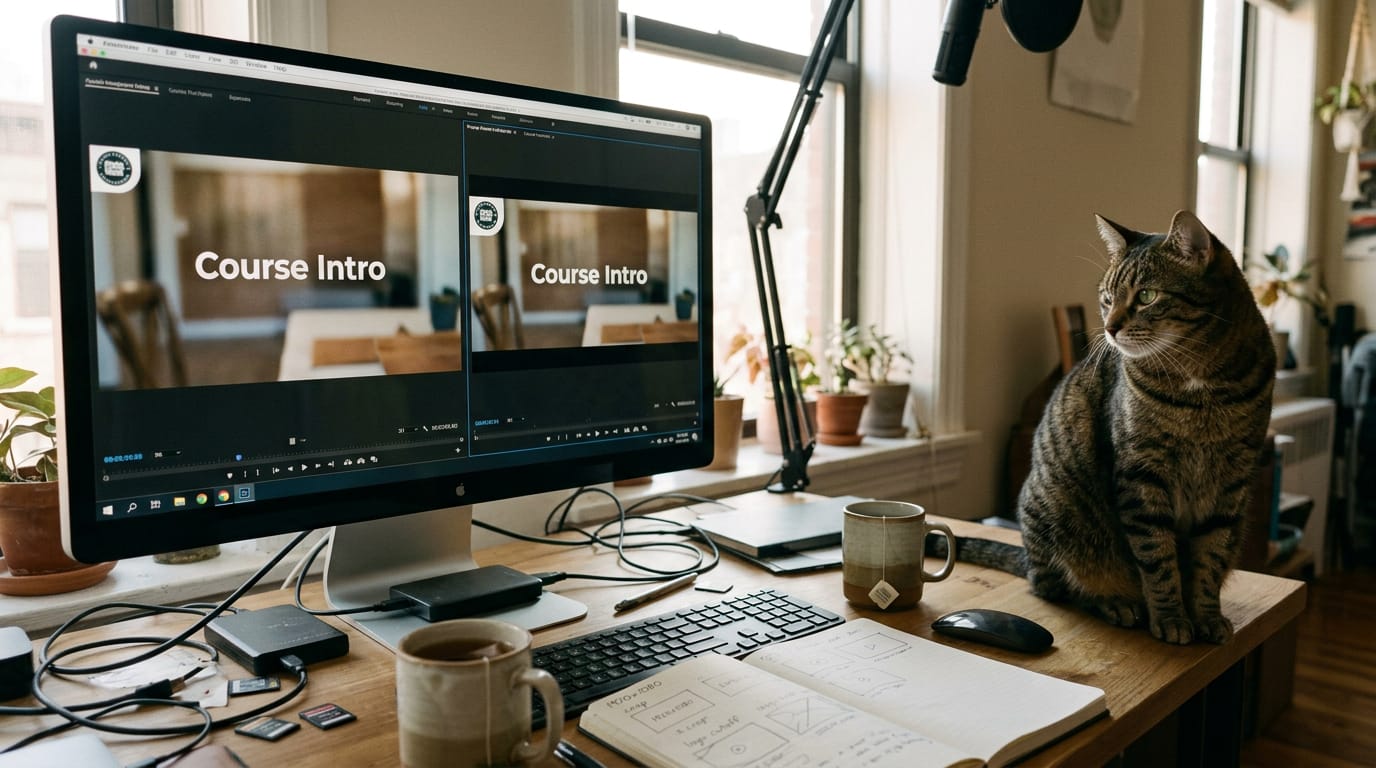
Premiere Pro and Final Cut both change the ratio through sequence or project settings, and free editors like Shotcut handle the same crop-or-fit step at no cost.
In Premiere Pro, the frame size comes from the sequence settings, so build one that matches your target ratio before you cut.
Online converters are quick but make the fill-or-fit call for you, so preview before you upload. Shoot wider than you think you need. That extra room lets you reframe later.
Turning Landscape Videos into Vertical Clips
Most vertical clips already exist in your landscape footage. The work is finding them and keeping the subject in frame.
Mining your library for short clips
You have more usable footage than you think. Somewhere in a 40-minute studio session of an illustrator painting a mural is a 30-second brush stroke that makes the piece click.
- Reuse your 16:9 library. Landscape files are your master copies, so nothing needs reshooting.
- Clip 60-second moments. Find a self-contained minute that works without the rest.
- Multiply output, less work. One session can yield a dozen clips.
Keep the subject framed as you reframe
Reframing crops a wide 16:9 picture into a tall 9:16 one. Keep the subject centered, and avoid the static center crop, which uses one fixed window. It fails the moment your illustrator leans left for a paint jar and her hands slide out of view.
The fix is dynamic reframing: the crop moves with the action, so it follows the subject rather than staying fixed.
For multiple ratios, use a nested sequence, a timeline placed inside another timeline. A freelance photographer who builds her vertical version from the nested copy turns a client’s ‘one more cut’ request into one fix, not two.
Let AI find hooks and add captions
Artificial intelligence (AI) tools can scan long footage and suggest strong moments. The tool suggests, but you choose.
- Auto-find best hooks. Start from flagged moments instead of scrubbing.
- Speaker tracking. The crop follows whoever’s talking.
- Auto captions for sound-off viewers. Generated text helps people follow along without sound.
Less scrubbing. More posting.
Other Shapes for Other Platforms
Your work won’t only live on YouTube. Here’s what the other ratios are for and how to choose.
Square, portrait, and cinematic shapes
- 1:1 square. Balanced, with no edge that dominates.
- 4:5 portrait. Taller than it is wide, so it fills more of a phone screen.
- 4:3 legacy. Boxy, like older TV and video.
- 21:9 cinematic. An ultra-wide frame that feels like a movie screen.
- Anamorphic 2.39:1. A very wide, film-style frame, often shot with special lenses.
Size guides for each social platform
Each platform has its own preferred shapes, so check its upload guide first.
- Instagram, TikTok, LinkedIn. A crop that works in one app may not fit the next.
- X and Facebook. Look up each shape rather than reusing an old file.
- YouTube supports 1:1 too. A square cut can serve your channel as well as the feed.
- Per-placement ratios. One video can show up as a feed post or a vertical clip, and each placement may call for its own ratio.
For example, a freelance photographer keeps one master file at full size and crops every version from it, so her 4:5 Instagram post never clips the subject’s face on a phone.
Picking the right shape for your audience
There’s no single best ratio, and last time’s shape may not fit this project. Instead of asking which shape wins, ask who will see it and where.
- Audience and platform. Where your viewers already scroll shapes how they meet your work.
- Content type and purpose. A tutorial and a portfolio reel rarely need the same frame.
- Viewing device and environment. A phone in bed shows a different frame than a desk monitor.
Preview every crop on a real phone, not just your monitor. Then commit.
Thumbnail and Channel Art Sizes
Your thumbnail and banner do a lot of the early work, so getting their sizes right up front saves you a re-export later. Here’s what to set for each.
Thumbnail size and file limits
Set every thumbnail to a 16:9 aspect ratio (the width-to-height proportion of a standard widescreen frame) at 1280x720 pixels, and keep each file under 2MB.
Custom thumbnails are worth the extra step. According to the YouTube Blog, they can improve the performance of your videos.
A strong click-through rate (CTR), the share of viewers who click after seeing your thumbnail, tells YouTube your video is relevant to viewers in their feed.
Thumbnail templates keep client channels consistent. For example, a freelance illustrator setting up a channel for a pottery studio builds one 1280x720 template with the logo, text zone, and brand colors already placed.
Each new upload then goes faster, because they reuse the template instead of rebuilding it. The client gets a consistent look without a new brief for every video.
Sizing your banner and profile photo
Here are the three numbers to set:
- Banner: 2560x1440 pixels
- Safe area: 1546x423 pixels, the centered zone for your logo and key text
- Profile photo: 800x800 pixels, square
Keep everything important inside that box so nothing gets lost at the edges.
Consistent branding builds trust. Match your colors, fonts, and logo across your banner, profile photo, and thumbnails, and you’ll have a channel viewers recognize before they read a word. Same look, every time.
Quick Answers to Common Questions
Most aspect ratio questions come down to a few short answers, so here they are before we get into the details. An aspect ratio is the width-to-height shape of a frame, written as two numbers like 16:9. It’s about the shape of the frame, not its size.
- Square uploads. A 1:1 video has equal width and height, so it won’t fill a wide frame the way 16:9 does. Picture a freelance illustrator who posts a square process clip next to her 16:9 tutorials. Knowing that before she exports saves her from re-cutting the clip later.
- 4:3 vs. 16:9. 4:3 is boxier and 16:9 is wider. Divide the first number by the second and 4:3 comes out to about 1.33 to 1, while 16:9 comes out to about 1.78 to 1.
- Is 1920x1080 16:9? Yes. Divide both numbers by 120 and you get 16:9, so there’s nothing to convert.
- Does 4K help ranking? We don’t have evidence that 4K affects where a video ranks. Think of resolution as the number of pixels in the frame, and pick it for quality, not for search.
- Standard video ratio. The standard for YouTube is 16:9. According to a research paper on converting videos to narrower aspect ratios, videos made for standard widescreen devices are in that same 16:9 ratio. Start there.
Once you know which shape each format calls for, aspect ratio stops being a guessing game. Keep your important action centered, check your export list before you hit render, and treat black bars and cropped edges as a quick fix rather than a fire drill.
When the setup is right from the start, one project becomes a landscape video, a vertical Short, and a square post without redoing the edit. A format you planned for is a format you never have to rebuild.
References
- Publishing Quality Statistics Videos on YouTube: Analysis of Sources and Publishing Formats — pmc.ncbi.nlm.nih.gov (2026)
- The Short Video Format: Conceptualizing a Ubiquitous Artifact of Visual Platforms — doi.org (2026)
- A content-aware tool for converting videos to narrower aspect ratios — dl.acm.org
- YouTube Shorts Now Averages 200 Billion Daily Views — thewrap.com (2025)
- 4 metrics to help you grow your YouTube channel — blog.youtube (2025)
- Upload YouTube Shorts - Android phone & tablet — support.google.com
Questions
What is the size of a YouTube video in Premiere Pro?
For a standard YouTube video, set your Premiere Pro sequence to 16:9, such as 1920×1080 pixels. For a YouTube Short, use a vertical 9:16 sequence, such as 1080×1920 pixels.
How to fit full screen in YouTube?
To fill the YouTube player, edit or reframe the video to match the player’s aspect ratio, typically 16:9 for standard videos. In Premiere Pro, use a fill crop to cover the frame, but check the edges because filling can trim parts of the picture; fitting preserves the whole image but may leave black bars.
Is YouTube a 16:9 ratio?
Yes. YouTube’s standard format for long-form videos is 16:9, a widescreen shape commonly used on TVs and monitors. YouTube also supports other shapes, including vertical 9:16 Shorts and square videos.
Sources
- Publishing Quality Statistics Videos on YouTube: Analysis of Sources and Publishing Formats, pmc.ncbi.nlm.nih.gov,
- Upload YouTube Shorts - Android phone & tablet - YouTube Help, support.google.com
- YouTube Shorts Now Averages 200 Billion Daily Views, thewrap.com,
- The Short Video Format: Conceptualizing a Ubiquitous Artifact of Visual Platforms, doi.org,
- 4 metrics to help you grow your YouTube channel - YouTube Blog, blog.youtube,
- A content-aware tool for converting videos to narrower aspect ratios, dl.acm.org