MFA Setup Guide: Every Method Explained
MFA setup takes minutes when you know where to start. Get steps for authenticator apps, Google 2-Step Verification, security keys, passkeys, and recovery.

Contents
MFA setup adds a second proof of identity after your password, such as an app-generated code, security key, or passkey. Choose a method that suits your accounts, enable it first for email, banking, and important work files, and save recovery options separately so you can still sign in if you lose a phone or key. Stronger methods like passkeys and security keys offer better protection than text codes, while regular settings checks help prevent lockouts.
Think of your password as the key to your studio. Anyone who copies it can walk right in, which is why multi-factor authentication (MFA), a second check that asks for something beyond your password, is worth the few minutes it takes to set up.
This guide walks you through every method in one place: authenticator apps, Google 2-Step Verification, security keys, and passkeys.
You’ll get the exact steps, plus recovery, troubleshooting, and a priority list for the accounts your studio depends on most.
The Basics of MFA Setup
Multi-factor authentication sounds technical, but the idea is simple, and this section walks through it step by step.
What MFA means for your logins
Multi-factor authentication (MFA) is a login check that asks for two or more kinds of proof before it lets you in. You’ll also see it called two-factor authentication (2FA) or two-step verification.
Either way, your password is the first proof and something else is the second.
A few key terms to know:
- Verification code: a short, temporary number that proves it’s really you.
- Authenticator app: an app on your phone that generates those codes.
- Second factor: the extra proof you add after your password.
Why passwords alone leave you exposed
A password is only as safe as where you type it. Passwords get guessed when they’re short or common, and when they’re reused across accounts, one leak can open several doors.
Breaches expose them in bulk, phishing emails trick people into typing them into fake login pages, and malware can capture them right from a device.
Strong passwords still get exposed too. A long, unique one can be phished or captured, so strength alone isn’t enough.
Picture a freelance illustrator who uses one password for email, cloud storage, and invoicing.
A phishing email tricks them into typing it on a fake page, and a stranger can suddenly read client contracts and send invoices in their name. One password, three open doors.
Walking through an MFA login
MFA doesn’t replace your password. It adds a second check, and a typical login looks like this:
- Enter your username and password.
- Give the second proof, like a code from your authenticator app or an approval prompt.
- Once it checks out, you’re in.
Each login takes only seconds. Many banking apps work this way: you sign in, and a prompt on your phone asks you to approve the login. Tap approve, and you’re through. It’s a small inconvenience for a big layer of protection.
Three kinds of proof to combine
MFA draws on three categories of proof:
- Something you know: a password or a passcode.
- Something you have: your phone or a physical security key.
- Something you are: a fingerprint or a face scan.
Combine across categories for the strongest setup. A password plus a code from your phone uses two different kinds of proof. Two passwords doesn’t count, because both are things you know. Mixing categories is what makes the second step count.
Choosing Which MFA Method Fits You
Not every multi-factor authentication (MFA) method protects you equally. Here’s how they rank, and how passkeys work.
Ranking MFA methods from strongest to weakest
From strongest to weakest:
- Passkeys: the strongest option in this ranking.
- Hardware security keys: phishing-resistant, so they’re hard to fool with a fake login page.
- Authenticator apps: the recommended choice.
- Text message (SMS) and email codes: weaker than the options above.
- Security questions: discouraged.
Two sources help explain the order. NIST’s Special Publication 800-63B ranks SMS and email verification below passkeys, hardware keys, and authenticator apps.
A comparative analysis titled “Choosing the right MFA method for online systems” lists security keys among phishing-proof methods.
Methods listed in vendor guides
The setup pages you’ll run into offer some mix of these:
- Text or voice codes: a one-time code sent by text or phone call.
- Authenticator app: a one-time code generated in an app on your phone.
- Security key: a small device you plug in or tap to confirm it’s you.
- Passkey: a credential stored on your device, unlocked by fingerprint, face, or PIN.
- Recommended method: each guide names its own pick, so treat it as a starting point.
How passkeys work without a password
A passkey replaces the password with a cryptographic key stored on your device. You approve each login with a fingerprint, face, or device PIN.
It’s less about remembering a secret and more about proving it’s you, which is why passkeys are passwordless and phishing-resistant.
Consider an illustrator who keeps their portfolio host and client file storage behind passkeys. A phishing page gets nothing usable, because there’s no password to hand over. Nothing to type, nothing to steal.
Setup is quick: create the passkey in your account’s security settings.

Where to Turn on MFA First
Turning on multi-factor authentication (MFA), a second check beyond your password, is worth doing everywhere. Here’s where we’d start, since you won’t finish every account in one afternoon.
Accounts to protect first
- Email first. Password resets usually land in your inbox, so whoever controls your email can often reach your other accounts. An illustrator whose email gets taken over can request resets for their invoicing tool and bank without cracking a single password. That’s a lot riding on one inbox.
- Banking and payment processor first. After email, protect your bank, your investments, and the processor that takes card payments from clients. A breach there means money leaving directly.
- Studio accounts. Your invoicing tool, domain, and portfolio host are where clients see and pay you. If your domain also runs your email, losing it can cut off your inbox too.
- Cloud storage. Client files and final deliverables live here, and losing them is a problem no invoice can fix.
- Social media and shopping. A hijacked profile can message clients as if it were you, and shopping accounts may store saved cards.
- Work and school accounts. Logins tied to a client’s shared workspace or a course can open a route into your work.
Turn it on wherever you can
All accounts hold personal data. Don’t skip a low-stakes account. Even a hobby forum login holds your name and email address, which is enough to make it worth a second check.
Turn it on if offered. If a service offers MFA, turn it on, even if it sits lower on your list. The goal is progress rather than perfection: finish the top of the list first, then work down as time allows.
Get an Authenticator App Running
An authenticator app is a small program on your phone that produces a one-time code at sign-in. Here, we’ll walk through setting one up.
First, though, check whether your password manager already has built-in codes, since you may not need a separate app at all.
Things you need before starting
Think of a freelance illustrator sending final files to a client’s shared drive from a laptop. With the app already on their phone, the second step takes seconds and keeps them focused on the job.
Before you start, gather these:
- You’ll need a computer and a phone, since the setup runs across both.
- Download the app from your phone’s app store.
- Allow notifications and camera access for the app.
- A desktop browser is recommended for the setup pages.
The goal is less about typing a code and more about approving a sign-in from the phone you already carry.
Setting up Microsoft Authenticator
Here’s the Microsoft path, in order:
- Open your security info page and select Add method, then choose Authenticator.
- When the options appear, choose to add a work or school account if that’s the one you’re setting up.
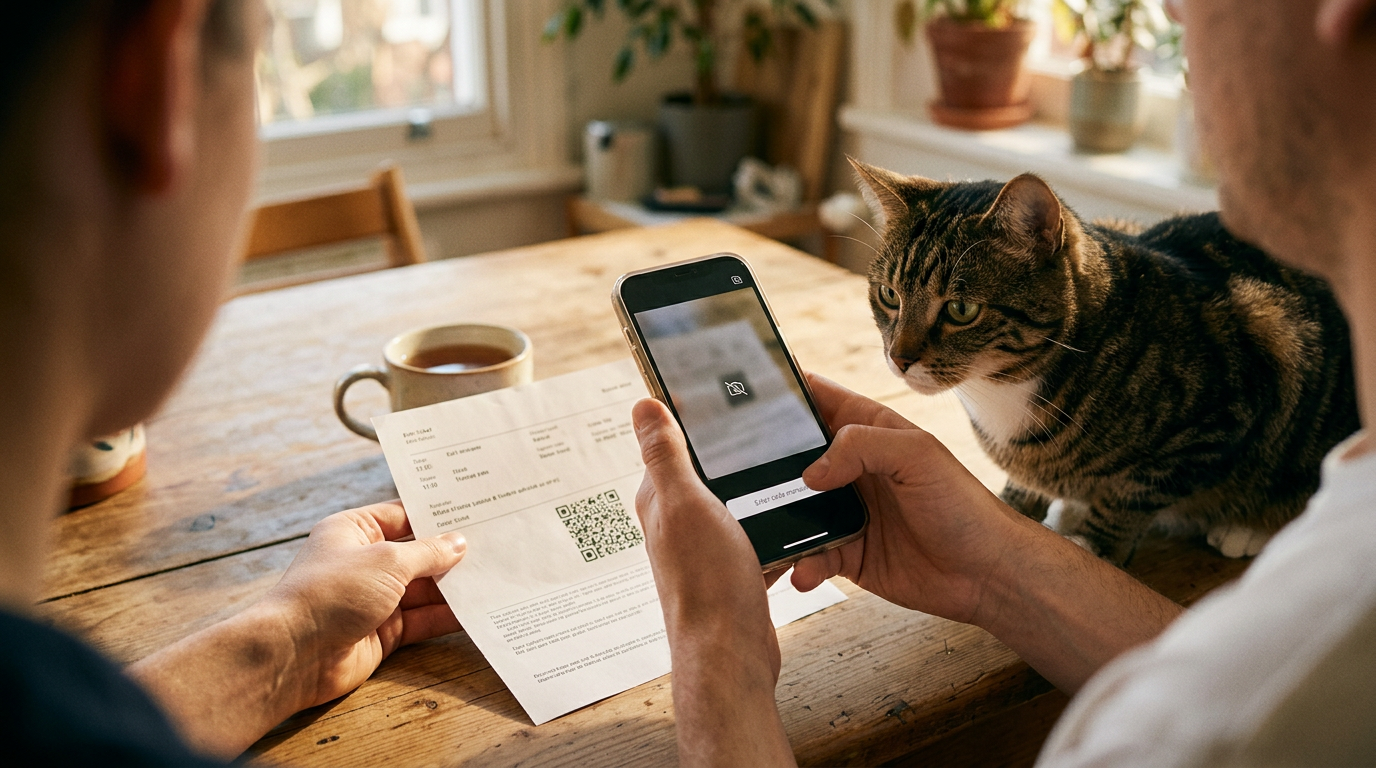
- Scan the QR code, the square pattern on your screen, with the app.
- Approve the test notification the app sends to confirm everything’s connected.
Other ways to add your account
If the QR route doesn’t suit your setup, you’ve got a few other options:
- Add the account with credentials. Sign in with your account details directly instead of scanning.
- Use a Temporary Access Pass. If your setup offers this option, use it as an alternate way in and follow the prompts.
- Verify the account in the app. Finish by verifying it in the app before you move on.
Adding a Google Authenticator account
Here’s the Google path:
- Set up the authenticator inside your Google account.
- Scan the QR code with your phone.
- Enter the code shown in the app to verify the setup.
There’s also an option within the Microsoft flow for this, so pick whichever starting point matches the account you’re adding. The steps are short, and the payoff is a second check that’s always within reach.
When the QR code won’t scan
If the camera can’t read the code, try these fixes:
- Can’t scan the image. Hold the phone steady and make sure the whole code is visible on your screen.
- Enter the code manually. Look for the option to type the code in by hand and use it instead. Skip the scan.
- Camera permission required. The app can’t scan without camera access, so check that it’s allowed in your phone’s settings.
Adding Security Keys and Passkeys
A security key is a device you carry. A passkey lives on the device you already have. Both confirm it’s really you at sign-in. Here’s how to set up each one, plus what to know before you buy.
Registering a FIDO or NFC security key
FIDO is short for Fast Identity Online. NFC stands for near-field communication, the tap-to-phone option some keys include. Here’s the registration flow:
- Select Add sign-in method.
- Choose security key.
- Insert the key into a USB (Universal Serial Bus) port, or tap it to your phone.
- Create a PIN (personal identification number) with at least 6 digits.
- Name the key.
Think of an illustrator who keeps one key on her keyring and a spare in her desk drawer. Naming them ‘Keyring’ and ‘Desk spare’ means she grabs the right one fast when a client call is about to start.
Using a YubiKey with your Google account
Set it up in this order:
- Turn on 2-Step Verification first, since a key works as your second sign-in step.
- Plug the YubiKey into a USB port.
- Follow the on-screen instructions.
Create a Google passkey on your device
- Go to g.co/passkeys.
- Create a passkey.
- Confirm with your screen lock.
Device limits. Passkeys only work on devices that support them. Check first.
Costs and limits of security keys
- Cost. Keys are a hardware purchase, so budget for one for your main account, plus a spare if you can.
- Not for admin accounts. Keys aren’t a fit for admin accounts, so don’t assume a key covers those logins.
- NFC support varies. Not every phone or key supports near-field communication, so check both before you buy.
Getting Google 2-Step Verification Running
2-Step Verification adds a second check to your sign-in. Here’s how to switch it on, get your codes, and set up a backup before you need one.
Switching it on in Google settings
Setup takes four steps:
- Open your Google Account.
- Go to Security settings.
- Find the Signing in to Google section.
- Click Get Started.
Getting codes by text or call
Google then asks you to confirm a verification code by text or phone call:
- Add your phone number.
- Choose text or call.
- Enter the code to verify.
Keep your phone number updated. If you switch carriers, update it in the same settings: a code sent to an old number goes nowhere.
Backup options if you lose your phone
A code sent by text or call only helps when you still have that phone, so set up a fallback:
- Recovery codes. Generate them in the same settings and save them offline, not in a note on the phone you might lose.
- Secondary phone number. Add a second number you can reach, like a partner’s phone.
- Protect against a lost phone. Keep the codes apart from your phone so losing one doesn’t take the other.
Think of a freelance photographer who loses her phone the morning of a shoot. Her codes are in a drawer at home, so she signs in from her laptop, pulls up the call sheet, and heads out on time.
Saving codes takes minutes. Being locked out on shoot day doesn’t.
Next steps once it’s enabled
Once 2-Step is on, three follow-ups keep the setup from leaving gaps:
- Update your Outlook account. If you use Outlook with this Google account, update that connection so its sign-in matches the new setup.
- Watch the video tutorials. Android and iPhone tutorials are available if you’d rather watch the steps than read them.
- Use the grace period. New users may get a grace period before 2-Step is required, so finish setup and test your backups during that window.
Keeping Your MFA Settings Current
Your sign-in setup isn’t a set-and-forget job. A new phone, a lost key, or a new person on a shared login all call for a quick settings update, so here’s how we’d handle each one.
Changing your default sign-in method
Your default sign-in method is the one the account asks for first. Here’s the path:
- Open your security info page.
- Change the default sign-in method to the one you want.
- Confirm the selection.
Then sign out and sign back in to test it. Confirming a change and using it are two different things, so don’t skip the test.
Removing an authenticator from your account
Say you’ve retired an old phone. You can remove its authenticator from your security info page, or delete the account entry inside the authenticator app itself.
Either way, deletion cannot be undone, so you’d have to set that account up again from scratch. If the removed authenticator was your default, the default switches automatically to another method on the account. Check it right away.
Handling lost phones and keys
Recovery codes are your backup way in when your phone or key isn’t with you. Picture a freelance illustrator who loses her phone three days before a client’s final files are due.
She signs in with a saved code, sets up the authenticator on a new phone, and delivers on time. Save yours now.
If the lost item is a security key tied to a work account, report it to IT, then remove the key from your account. If your number has changed, update it on your security info page so codes reach you.
Moving your authenticator to a new phone is easiest while the old one still works, so set up the new device before you retire the old.

Using one key for several accounts
A single security key can protect more than one of your accounts. Shared logins are a different story: a key lives in one person’s pocket, so a shared account usually suits an authenticator app better.
Use a key for your accounts and an app for shared ones.
Fixing Problems and Finding Help
Most multi-factor authentication (MFA) hiccups come down to a few predictable snags. When something stalls, work through this list before you reset anything.
Setup problems you might run into
Check these four snags first:
- Security key not detected. Unplug it, try another USB port, and confirm your browser supports security keys.
- PIN setup fails. Enter the same PIN twice and make sure it meets the required length. If it still won’t save, remove the half-finished key and register it again.
- Can’t add method. The method may already be on your account, or an admin may have locked the option. Check the security page for a message.
- Sign-in screen instead of QR. A sign-in page appears where you expected a QR code. Go back to your security settings and start the setup from there.
Consider an illustrator whose security key won’t register on the laptop an hour before a client’s final files are due. Moving the key to another USB port takes seconds, and the files still go out on time.
The goal is to fix the one thing that’s stuck, not restart the whole setup.
Where to find more help
If the fixes above don’t work, these are your next stops:
- Contact IT helpdesk. If the account belongs to an organization, its IT team can see settings you can’t.
- Official documentation links. The provider’s own help pages show current menu names and steps.
- Video walkthroughs. Watching someone click through setup makes a confusing menu easier to follow. Choose one that matches your exact service.
- FAQs. The frequently asked questions page is the quickest check for common errors and lockouts.
Where MFA Can Still Fall Short
Multi-factor authentication (MFA) is a real upgrade, but it isn’t bulletproof. Here’s where attackers still get through.
How attackers try to bypass MFA
Many bypasses trick you into opening the door yourself. Phishing for codes uses a fake login page to collect your password and login code, then replays both in real time.
MFA fatigue, or push bombing, floods you with approval prompts until someone taps Approve just to make them stop.
SIM swapping tricks your carrier into moving your phone number onto a SIM (subscriber identity module) card the attacker controls, so your texted codes go to them.
Unprotected email codes are only as safe as the inbox they land in. If that inbox has only a password, add MFA to it first.
What to do with suspicious prompts
If a prompt shows up that you didn’t start, do three things:
- Don’t approve. Tap deny, even if approving would make the prompts stop.
- Change password. Update it for that account and any other account where you reused it.
- Review account activity. Scan sign-in history and connected devices for anything unfamiliar.
Say a freelance photographer gets a late-night push prompt. She taps deny, changes her password, and spots an unfamiliar sign-in. A few minutes of cleanup protects her client’s gallery.
Balancing speed and security
MFA adds a few seconds to every login. It’s less about avoiding that friction and more about choosing the method that fits your day. Those seconds cost less than the scramble of recovering a hijacked account while clients wait.
Passkeys are quick to use: you confirm with your fingerprint, face, or screen lock, with no code to type. Speed bumps are cheap. Lockouts aren’t.
Multi-factor authentication doesn’t have to be complicated. Pick the method that fits your workday, start with the accounts that hold your email, files, and money, and set up recovery before you need it.
Revisit your settings whenever you change phones or add a tool, and every login you lock down is one less way to lose a day of billable work. Lock the door once, and your studio stays open for business.
References
- NIST Special Publication 800-63B — pages.nist.gov (2025)
- Choosing the right MFA method for online systems: A comparative analysis — doi.org (2023)
Sources
- Choosing the right MFA method for online systems: A comparative analysis, doi.org,
- NIST Special Publication 800-63B, pages.nist.gov,